
iPhone & Android
Get the Kaironeek Financial App
Your secure client portal on your phone's home screen. Free, no app store needed. Sign in once and open it with one tap.

Everything about your credit file, one tap away
- See your dispute progress and results
- Upload and view your documents
- Message our team securely
- Answer your intake questions (type, attach, or speak your answer)
- Sign your agreement and manage your payments
New client? Tap “Open the App,” then “Create Account.”
On iPhone
- Tap Open the App above. It opens in Safari.
- Tap the Share button at the bottom of the screen (a square with an arrow).
- Scroll down and tap Add to Home Screen.
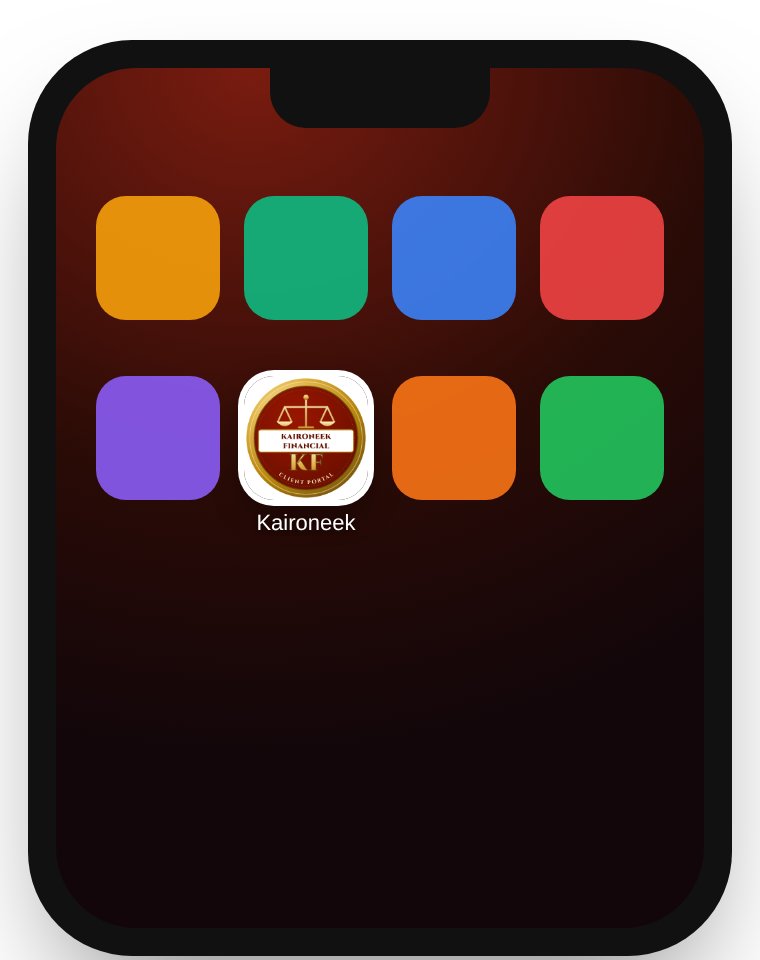
- Tap Add in the top corner. The Kaironeek icon appears on your home screen.
- Tap the icon and sign in. Next time it opens with one tap.
Using Chrome on iPhone? Tap the Share button next to the address bar, then “Add to Home Screen.”
On Android
- Tap Open the App above. It opens in Chrome.
- In the portal, tap Add to My Home Screen — or tap the menu (three dots) at the top right.
- Tap Install app or Add to Home screen, then Install.
- Tap the Kaironeek icon on your home screen and sign in.
Samsung Internet: tap the menu (three lines), then “Add page to” → “Home screen.”
Questions about your file?
Sign in to the app to message our team, or contact us any time.
Common questions
Is the app in the App Store or Google Play?
No — and you don’t need them. Our app is added straight from your phone’s browser in a few taps. It’s free, takes almost no storage, and updates itself automatically.
Is it secure?
Yes. It’s the same secure client portal, protected by your password and two-step verification. Your documents and messages are not stored on your phone.
Do I need a new account?
No. Sign in with the same account you already use. New clients can create an account right in the app.
I don’t see “Add to Home Screen.”
On iPhone, make sure you opened the page in Safari (or Chrome), then look in the Share menu — you may need to scroll down. On Android, use Chrome and look in the three-dot menu for “Install app” or “Add to Home screen.”
How do I remove it?
Press and hold the icon, then choose Remove App (iPhone) or Uninstall / Remove (Android).